

Download for macOS
Get the
.dmg file: aarch64 for Apple silicon, x64 for Intel.Download for Windows
Get the
x64-setup.exe installer.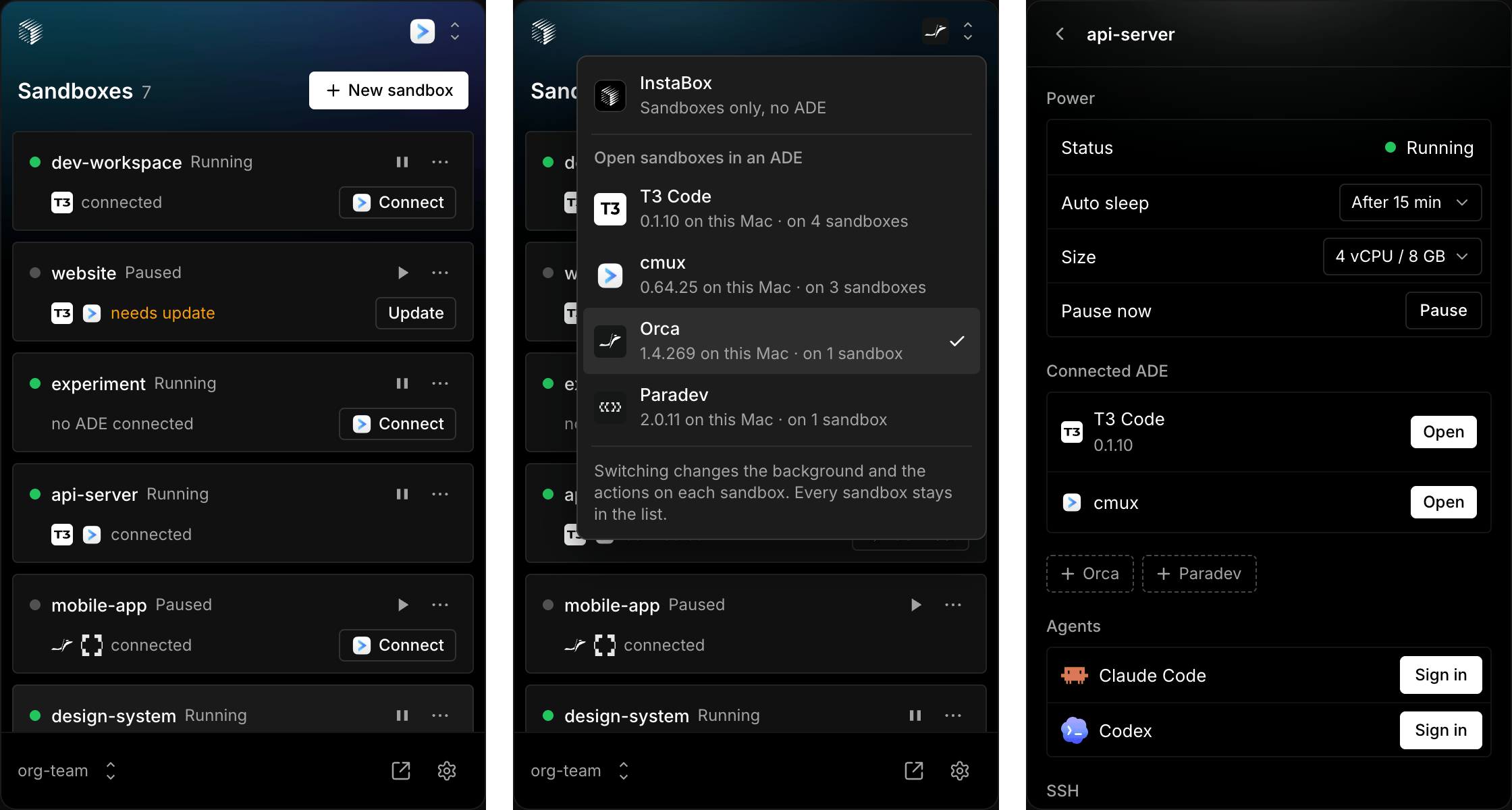
1
Install InstaADE
On macOS, open the
.dmg, drag InstaADE to Applications, and open it. It is signed and
notarized, so it opens without a warning.On Windows, run the installer. It is not signed yet, so SmartScreen asks once: select
More info, then Run anyway.2
Sign in
Click the InstaADE icon in the menu bar or the system tray. On Windows, the icon can be under the
^ arrow at first. Sign in with GitHub or Google, and the popover lists your machines.
3
Pick your ADE
Open the menu at the top of the popover, and pick T3 Code, cmux, Orca, or Paradev. Each entry
shows the version on your computer and how many machines have that ADE.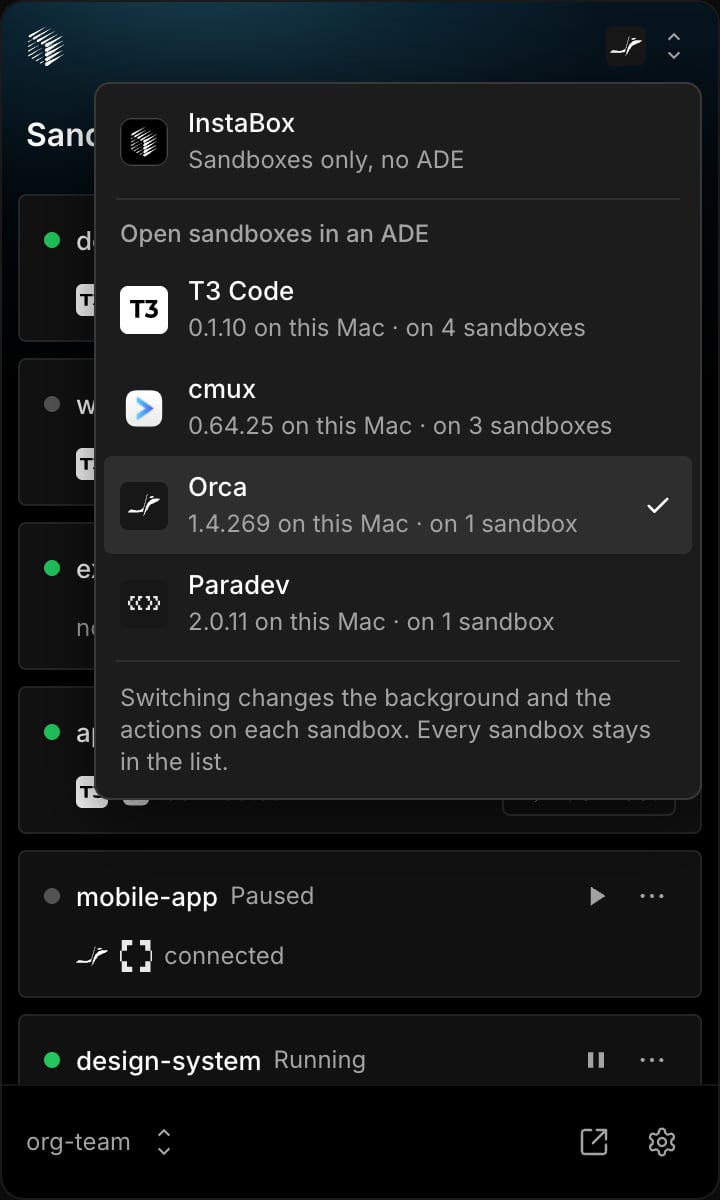
4
Create a machine
Select New sandbox, pick a size, and select Create sandbox. InstaADE creates the machine
and sets up the ADE on it.
5
Finish in the ADE
Each ADE asks for one last step:
- T3 Code: confirm the new environment.
- cmux: confirm the new workspace.
- Orca: from the SSH menu, connect the host that InstaADE names, and open
/data/home. - Paradev: select Set up a host over SSH, and paste the SSH address that InstaADE copied. Then select Install Paradev in InstaADE again.
Open a machine again
To open a machine later, select ⋯ on its row, then Open in and the name of your ADE. A machine that does not have the ADE yet shows Connect on its row instead, which sets the ADE up and opens it. Select a machine to see its details. Under Connected ADE, each ADE on the machine has Open, and the buttons below it add another ADE from your computer, so you can use several ADEs on one machine. The details also pause and resize the machine, set its auto sleep, and sign Claude Code or Codex in.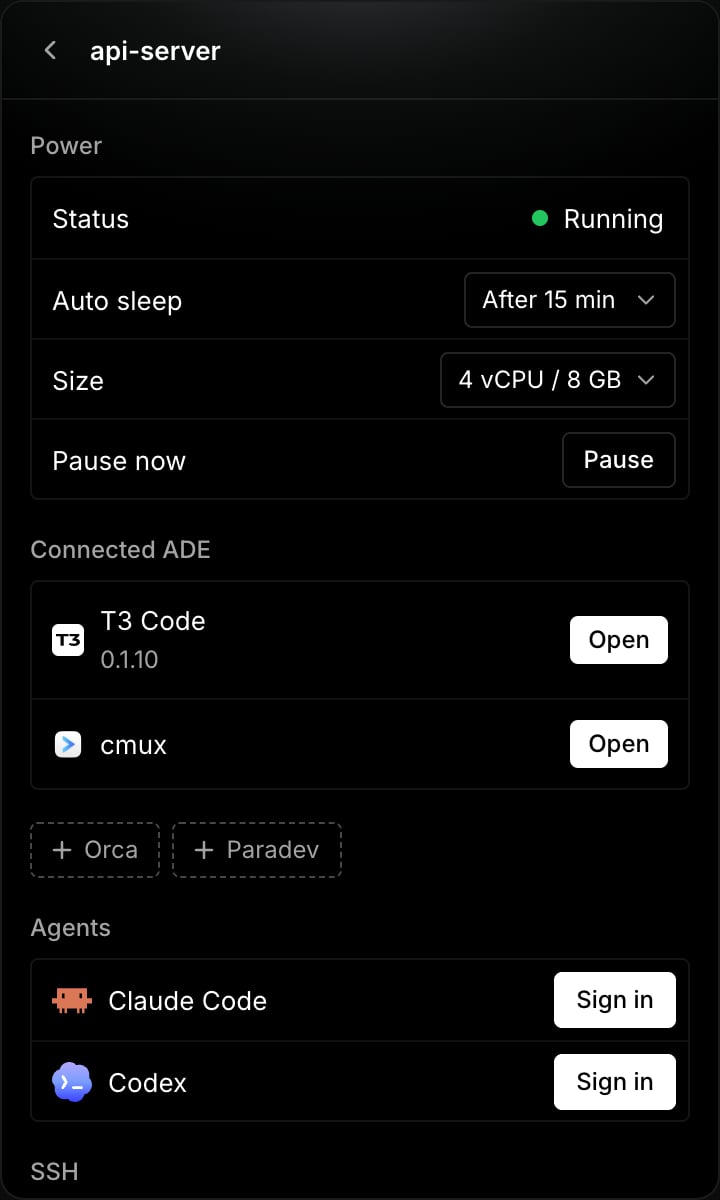
Connect any ADE that supports SSH
Add a machine to your SSH config for an app that InstaADE does not set up.
InstaADE on GitHub
Read the source, report a bug, or add your favorite ADE.